
Collect Cars and Race Controls
Observed HUD and binds for Collect Cars and Race. There is no official keybind document from push to start.
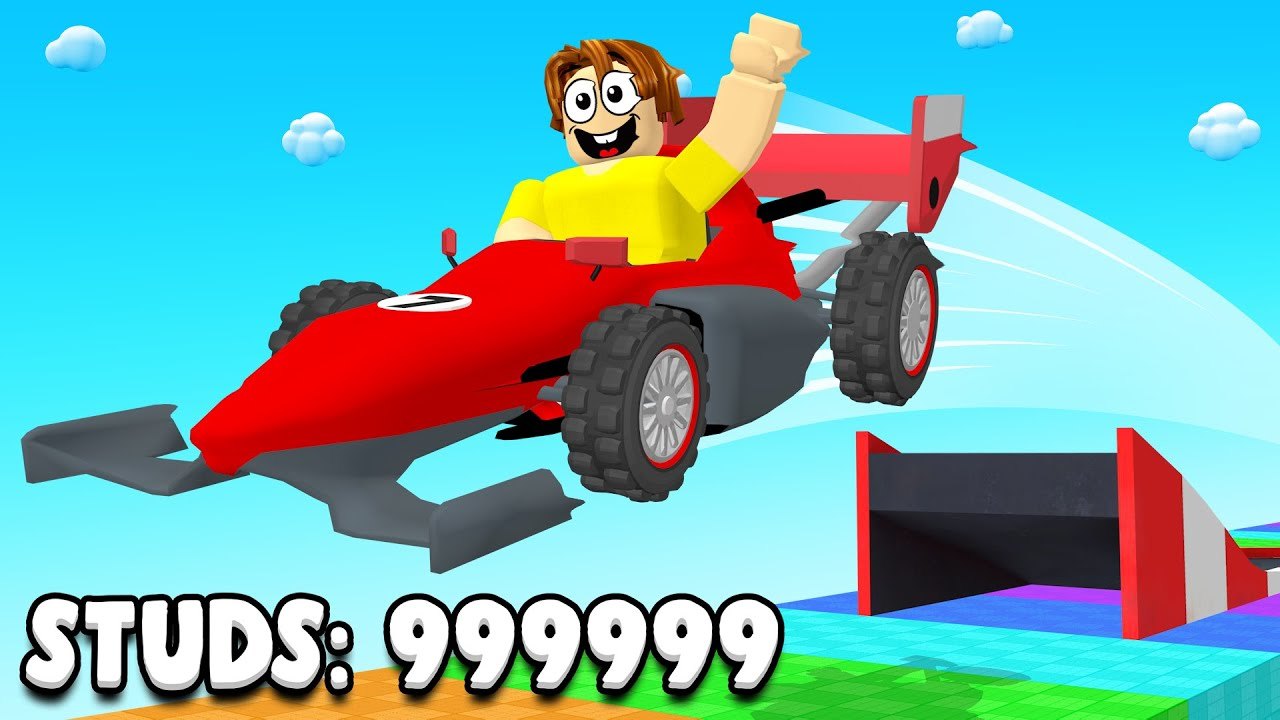
Collect Cars and Race does not ship a published keybind table. push to start has not posted an official controls doc for Car Race. What follows is the HUD and input pattern observed in gameplay videos and live sessions, plus standard Roblox behaviour on each device. If a prompt on your screen disagrees with this page, trust the prompt.
You are in a 16-player online lobby, not a local co-op cockpit and not a single-player-only tutorial. Movement, Shop, pets, cars, digging, and the ramp are the whole language. Once those six things are comfortable, go back to How to Play for the loop and Getting Started for the day-one order.
What the HUD actually shows
Left side: Shop. That button is the most important control in the game because it hides cars, eggs, gamepasses, and the code box. The code field is at the bottom of the Shop panel, easy to miss if you only glance at the first car thumbnail.
Center / world: the lobby floor with gas cans, treasure crosses, parked shop cars, and the ramp that launches you onto the infinite rainbow stud track. Your character walks this space until you enter a vehicle.
Pet and inventory panels: opened from the usual simulator-style buttons on the HUD (exact icon art changes with UI updates). Equip happens here. If you redeemed FreePet or Release and never opened this panel, those pets are not helping the launch.
During a launch: the world becomes the rainbow track and a distance readout. You are not steering a circuit. You committed. When the run ends you are back in the lobby.
There is no hidden radial menu that rebinds keys. There is no in-game “controls” tab with a list you can screenshot. If a creator overlay draws extra buttons, that is their UI, not yours.
PC, as observed
Keyboard movement is standard Roblox WASD. Camera is the mouse. Jump is space if you need it in the lobby; you are not parkouring the rainbow. Cans collect on collision. Digging a treasure cross uses the on-screen prompt, which footage treats as E, the default Roblox interact. If your account rebound interact in Roblox settings, use that bind instead. This wiki will not invent a custom table.
Enter a car by walking to it and using the vehicle enter prompt (the same pattern as other Roblox vehicle games; often E or a seat prompt). Drive with WASD to line up on the ramp, then commit down it. You do not need a separate “launch key” beyond driving off the lip in the videos we used.
Open Shop with the left HUD button and the mouse. Click the code box at the bottom, paste with Ctrl+V, click Redeem. Click cars and eggs the same way. Close Shop before you try to walk; a stuck panel is the usual reason people think movement “broke.”
Shift lock and first person are Roblox camera options, not game features. Use whatever lets you see cans. High FOV helps on a busy 16-player floor.
Mobile, as observed
Movement is the on-screen thumb stick. Camera is a drag on the empty part of the screen. Jump is the jump button if Roblox is showing one. Interact is a tap on the prompt when you stand on a treasure cross or a vehicle seat.
Cans collect when you steer into them. You do not need a separate pickup button for floor gas in the footage. If a can is not collecting, you are not close enough, or another player already took it.
Shop is still the left-side button. The code box is still at the bottom of that panel. Paste from the clipboard if your device allows it; typing Update5 on a tiny field is how typos happen. After redeeming, close Shop so the stick is usable again.
Thumb overlap is the mobile tax: the stick can cover a can or a cross. Walk a slightly wider loop. Auto Collect exists partly for this device class, but it is a paid pass, not a control scheme.
Console and generic gamepad
Roblox on a gamepad uses the platform overlay: left stick move, right stick camera, face button for the highlighted prompt (enter car, dig cross, confirm Shop). The Shop button is still a HUD tap/select, not a unique console combo. There is no exclusive gamepad layout published for Car Race.
If the virtual cursor is on, point it at Shop on the left, then at the code field. If the virtual cursor is off, tab through HUD buttons with the gamepad highlight. Exact face-button names differ on Xbox, PlayStation, and third-party pads; use the on-screen label.
Shop, pets, dig, launch — the sequence
- Move through the lobby (WASD, stick, or left stick).
- Collect cans by walking into them.
- Stand on a treasure cross, wait for the prompt, interact (E / tap / face button).
- Open Shop on the left. Redeem codes at the bottom. Buy a car or egg if you have currency. Close Shop.
- Open the pet panel. Equip the strongest set. Close it.
- Enter your car via the seat prompt.
- Drive onto the ramp and go. Read the distance. Repeat from step 1.
That sequence is the control scheme. Anything advertised as a “secret key” to skip gas is not part of the observed HUD.
What you cannot remap in-game
You cannot bind a dedicated “dig” key inside Car Race. You cannot bind Shop to a keyboard number from a settings menu this game does not ship. You cannot toggle a developer debug overlay. You can change some Roblox-wide keys in the Roblox menu (Esc on PC), and those will carry into this experience because it is a Roblox place, not a standalone EXE.
If Shop is missing, you are not in Car Race by push to start. If there is no ramp and you are in a dealership, you launched Car Dealership Tycoon or another similarly named racer. Back out. Controls pages for those games will not apply here.
Learn the six HUD jobs — move, pick up, dig, Shop, equip, launch — and the rest of the wiki is strategy. Return to How to Play when the buttons are boring, and to Getting Started if you still need the first-hour order around those buttons.
Frequently Asked Questions
Quick answers for gas, pets, cars, and codes.
What are the official Collect Cars and Race keybinds?
There are none published. Use standard Roblox WASD on PC, the on-screen stick on mobile, and the on-screen prompts to dig, enter a car, and open Shop.
Where is the Shop and code box?
Shop is the button on the left of the HUD. Codes are at the bottom of that panel. This is the same on PC, mobile, and console overlays.
How do I dig treasure crosses?
Stand on the marked cross and use the interact prompt. Videos show E on PC and a tap on mobile. Trust the prompt if your Roblox bind differs.
How do I launch?
Enter your car with the seat prompt, drive onto the ramp, and go. There is no separate launch hotkey in observed footage.
Where should I go after I learn the HUD?
Follow Getting Started for the first-hour order, then How to Play for the full collect-equip-launch loop.